Setup help
Adding a server on your computer
A server on your computer is a program that runs on your own computer. That only works with an AI on that computer: not on your phone, not on Claude’s website, and not in ChatGPT on the website or on your phone.
Check below whether your AI is among them. You can remove the server again later. Other kinds of extension are in the overview.
Checked on
Claude
No
No. Claude on the website and in the app on your phone cannot start a program on your computer. Use Claude on your computer.
Claude on your computer
Yes, in Cowork only as an extension or plugin
There are three ways, from easy to hard. Which one applies to this server is on the extension’s source page.
From Claude’s list of extensions. Anthropic has reviewed those, and they are there for everyone, without a plan too:
- Open Settings and choose Extensions, under Desktop app.
- Click Browse extensions and look up the extension.
- Click Install.
- Fill in the settings the extension asks for.
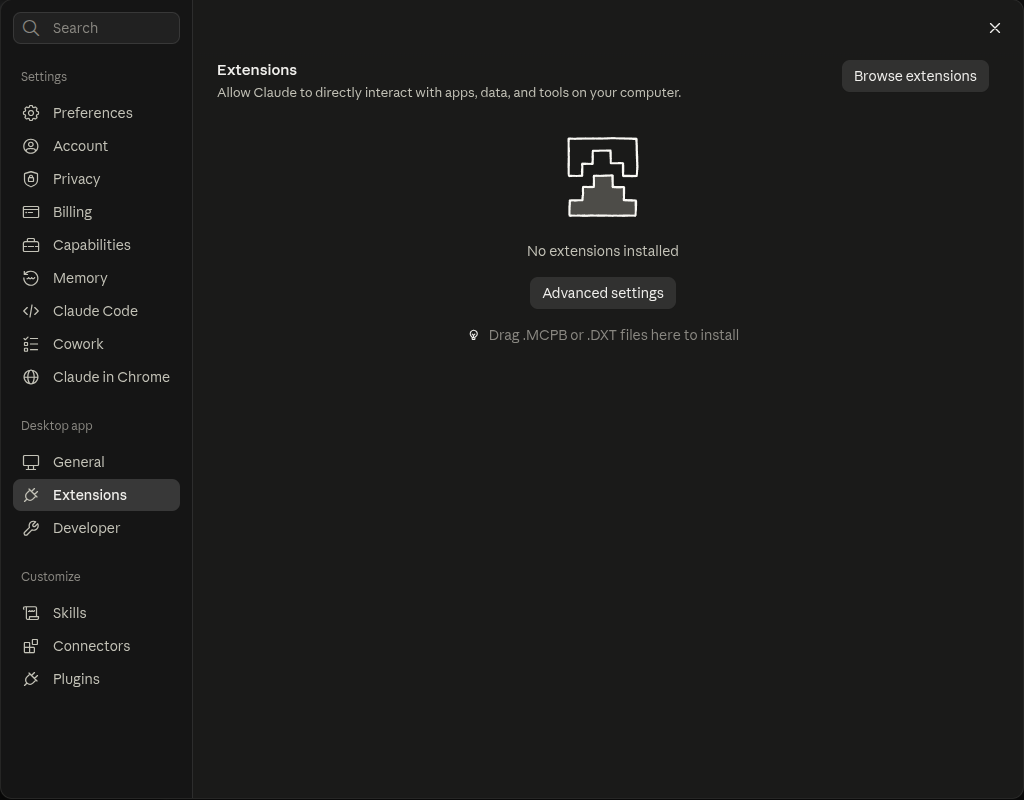
With a file from the maker, if they provide a .mcpb file:
- Open Settings and choose Extensions.
- Drag the maker’s file onto this screen.
- Dragging not working? Click Advanced settings and, under Extension Developer, choose Install Extension….
By hand, in the configuration file. This is the last resort, and for most servers it needs Node.js on your computer:
- Open Settings and choose Developer, under Desktop app.
- Click Edit config. The file
claude_desktop_config.jsonopens. - Put the server in as the source page describes, and save.
- Restart Claude.
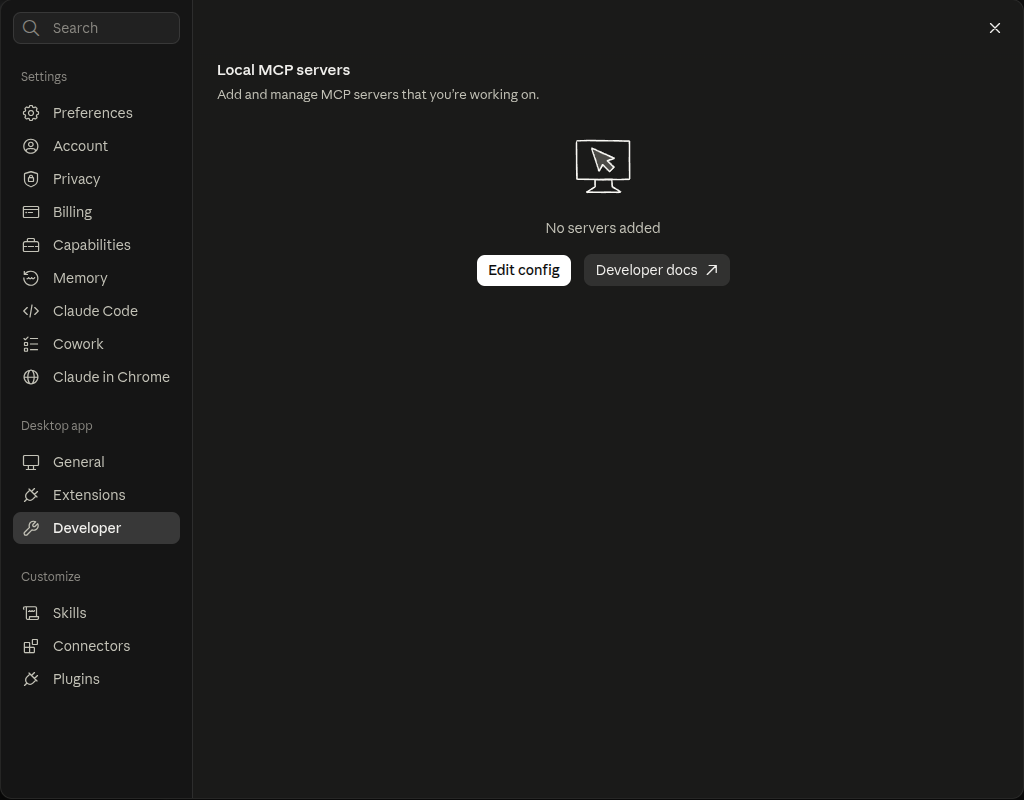
Using Cowork? It only sees the server when it was added the first or second way, as an extension or inside a plugin, and only while the app on your computer is open. Cowork does not see a server from the configuration file. Cowork is on paid plans only.
Claude Code
Yes
Which command starts the server is on the source page, not in the catalogue. You do not have to work that out yourself: paste the request at the bottom of this page into Claude Code. It first asks whether the server goes in this folder only or in all your projects.
If the server asks for an account or API key, follow the maker’s instructions. Type /mcp in Claude Code to see whether the server is connected.
To remove it again, with the name Claude Code used:
claude mcp remove NAMEIf it is in all your projects, remove it with:
claude mcp remove NAME --scope userChatGPT
No
No. ChatGPT on the website or on your phone cannot add this local server. Use ChatGPT on your computer or Codex.
Does the maker also provide an MCP address? Follow the steps for a remote server instead.
ChatGPT on your computer
Limited, through the MCP settings; use in Chat and Work not confirmed
The ChatGPT app on your computer has MCP settings of its own, shared with Codex. OpenAI lists them for Plus, Pro, Business and Enterprise. Which command starts the server is on the source page, not in the catalogue; for most servers it needs Node.js on your computer.
- Open the app’s settings and choose MCP servers. If it is not there, look under the developer settings.
- Click Add server.
- Give the server a name, choose STDIO and enter the command from the source page.
- Click Save and restart the app with Restart.
OpenAI describes these settings as Codex settings: they apply to Codex in the app, in the terminal and in the IDE. Whether plain chat and Work in the app use the server too, OpenAI does not say.
Rather not work out the command? Paste the request at the bottom of this page into Codex and answer ‘all my projects’: that is the only file the app shares with Codex.
Codex
Yes
Which command starts the server is on the source page, not in the catalogue. You do not have to work that out yourself: paste the request at the bottom of this page into Codex. It first asks whether the server goes in this folder only or in all your projects.
If the server asks for an account or API key, follow the maker’s instructions. Type /mcp in Codex to see whether the server is connected.
To remove it again, with the name Codex used:
codex mcp remove NAMEIf it is in .codex/config.toml in a folder, remove it from there.
The request for Claude Code or Codex
Open the source page from the extension’s page, copy the link, paste this request and replace SOURCE_LINK with that link:
Add the MCP server from SOURCE_LINK following the maker’s instructions. Ask first: this folder or all my projects? Test the connection.