Setup help
Adding a remote server
A remote server runs at the maker’s end. You need its address, which you copy from the extension’s page, and an account at the service if that page shows a key beside it.
Every AI below takes a server like this in one way or another. You can remove it again later. Other kinds of extension are in the overview.
Checked on
Claude
Yes, free: one
This holds for Claude on the website and in the app on your phone.
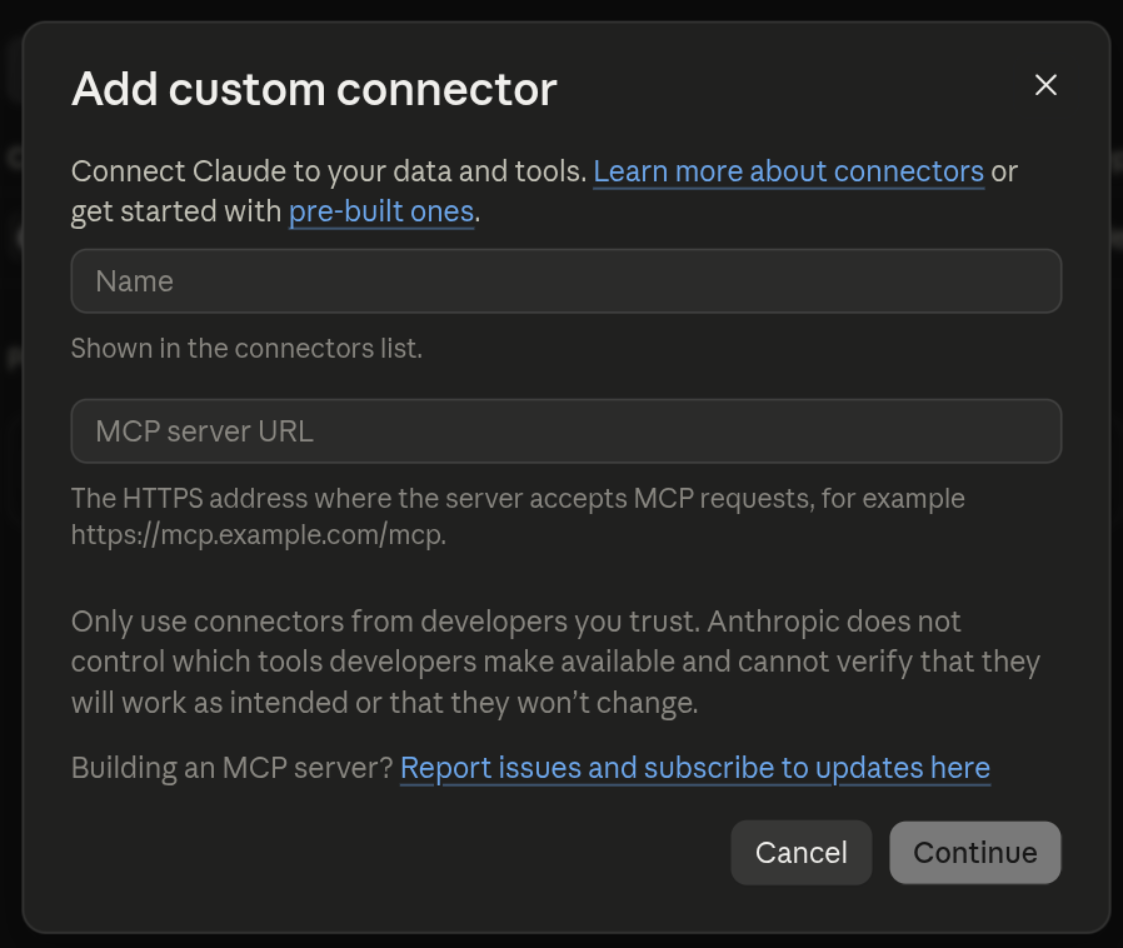
- Open Customize and choose Connectors.
- Click Add on the right.
- Give the connector a name and paste the extension’s address into MCP server URL.
- Click Continue, and sign in to the service if you are asked to.
- In a chat, your connectors are under + in the message box, at Add connector.
- Free: you can add one custom connector.
- Team and Enterprise: an Owner adds the connector for the organisation first.
- Adding on your phone is still in beta. Do it on the website or on your computer instead.
- If you sign in to Claude Code with the same Claude account, the connector is there as well.
Claude on your computer
Yes
On your computer you add a remote server exactly as in Claude. The connection runs through Anthropic, not through your own computer.
Cowork uses the same connectors: what you add in Claude, you have in Cowork too. You start Cowork with Cowork in the message box. Cowork is on paid plans only; on the website and on your phone that means Pro, Max and Team, and Enterprise if your organisation turns it on.
Claude Code
Yes
Copy the MCP address from the extension’s page and run this command in the terminal. Replace NAME with a short name without spaces and ADDRESS with the address:
claude mcp add --transport http NAME ADDRESSThat puts the server in the folder you run the command in only, and for you only. For all your projects, add --scope user:
claude mcp add --transport http NAME --scope user ADDRESSDo not choose --scope project: that puts the server in a .mcp.json in the folder, and that file is shared with your project.
If the service asks for an account, sign in through your browser:
claude mcp login NAMEIf the maker asks for an API key, follow the source page. Type /mcp in Claude Code to see whether the server is connected.
To remove it again, stored sign-in included:
claude mcp remove NAMEIf it is in all your projects, remove it with:
claude mcp remove NAME --scope userChatGPT
Yes, from Plus, through developer mode
Use the MCP address of the extension you found in the catalogue. Add it through developer mode on the ChatGPT website.
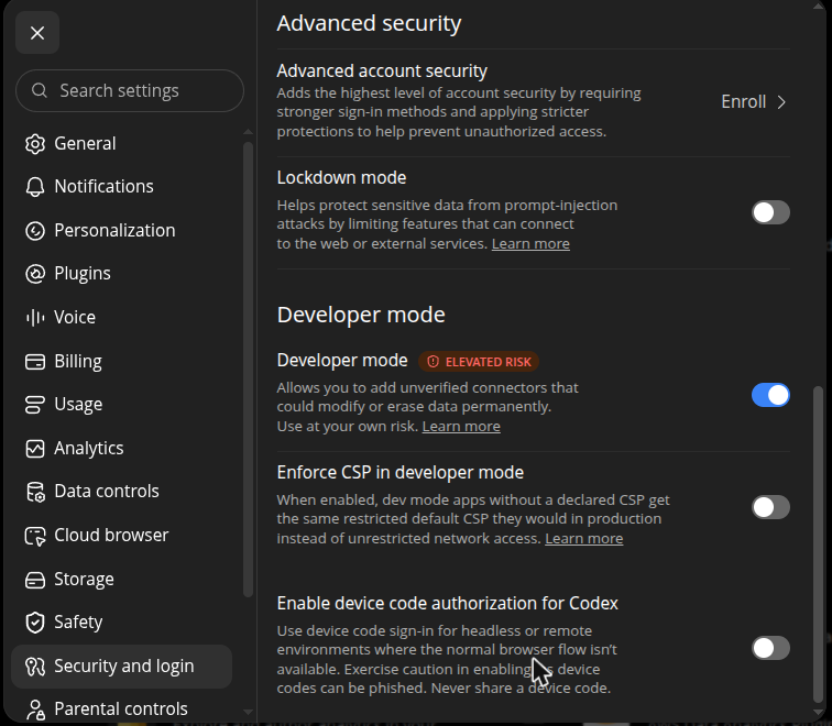
First check whether you can enable developer mode in your settings. Free and Go do not have it, Plus and up do; on a work account your administrator decides. If the option is missing, you cannot add this extension through this route.
- Copy the MCP address from the extension’s page.
- Enable developer mode in the settings on the ChatGPT website.
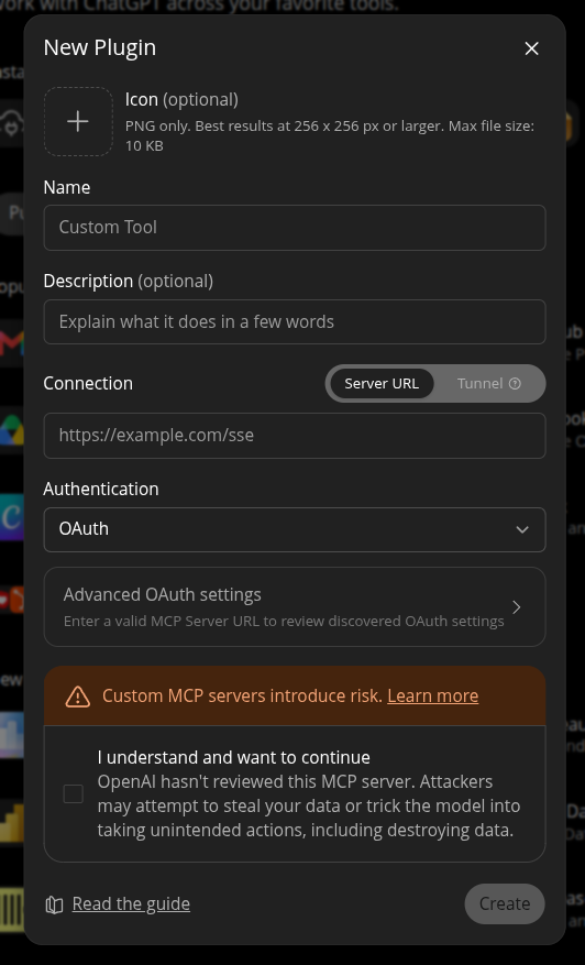
- Open the plugins overview and choose the option to create a custom app.
- Give the app a name and paste the MCP address.
- Finish adding the app and sign in to the service if asked.
- Select the app through developer mode in a new conversation and ask ChatGPT to use the extension.
A link to a GitHub project is not enough: you need the MCP address of a running server.
ChatGPT on your computer
Limited, through the MCP settings; use in Chat and Work not confirmed
The ChatGPT app on your computer takes the same plugins as ChatGPT on the website, and also has MCP settings of its own, shared with Codex. That is where you paste the extension’s address. OpenAI lists these settings for Plus, Pro, Business and Enterprise.
- Open the app’s settings and choose MCP servers. If it is not there, look under the developer settings.
- Click Add server.
- Give the server a name, choose Streamable HTTP and paste the extension’s address.
- Click Save and restart the app with Restart.
- Does the service ask for an account? Click Authenticate in the server list and sign in through your browser.
OpenAI describes these settings as Codex settings: they apply to Codex in the app, in the terminal and in the IDE. Whether plain chat and Work in the app use the server too, OpenAI does not say; Work in the cloud uses plugins only.
The terminal works too: the Codex command puts the server in the same file.
Codex
Yes, on every plan
Copy the MCP address from the extension’s page and run this command in the terminal. Replace NAME with a short name without spaces and ADDRESS with the address:
codex mcp add NAME --url ADDRESSThat puts the server in all your projects: the command writes to ~/.codex/config.toml. The command cannot limit it to one folder. For that, put the server in .codex/config.toml in that folder yourself; Codex reads that file only in a project you trust:
[mcp_servers.NAME]
url = "ADDRESS"
If the service asks for an account, sign in through your browser:
codex mcp login NAMEIf the maker asks for an API key, follow the source page. Type /mcp in Codex to see whether the server is connected.
To remove it again, with the same name you used when adding it:
codex mcp remove NAMEIf it is in .codex/config.toml in a folder, remove it from there.
Does the extension’s page say Server on your computer or remotely? Then the same server can also run on your own computer. How that works is in adding a server on your computer.