Setup help
Adding a skill
A skill is a set of instructions your AI reads. Nothing is connected and no server runs: it is a folder of text that your AI picks up when your question calls for it. If a skill also ships scripts, your AI runs them itself.
You can remove a skill again later. Other kinds of extension are in the overview.
Checked on
Claude
Yes
This holds for Claude on the website and in the app on your phone, on every plan, Free included.
- Open Settings, choose Capabilities and turn on Cloud code execution and file creation.
- Download the skill’s folder from the source page and zip it.
- Open Customize, choose Skills and click Add.
- Choose Upload skill.
- Choose the ZIP file.
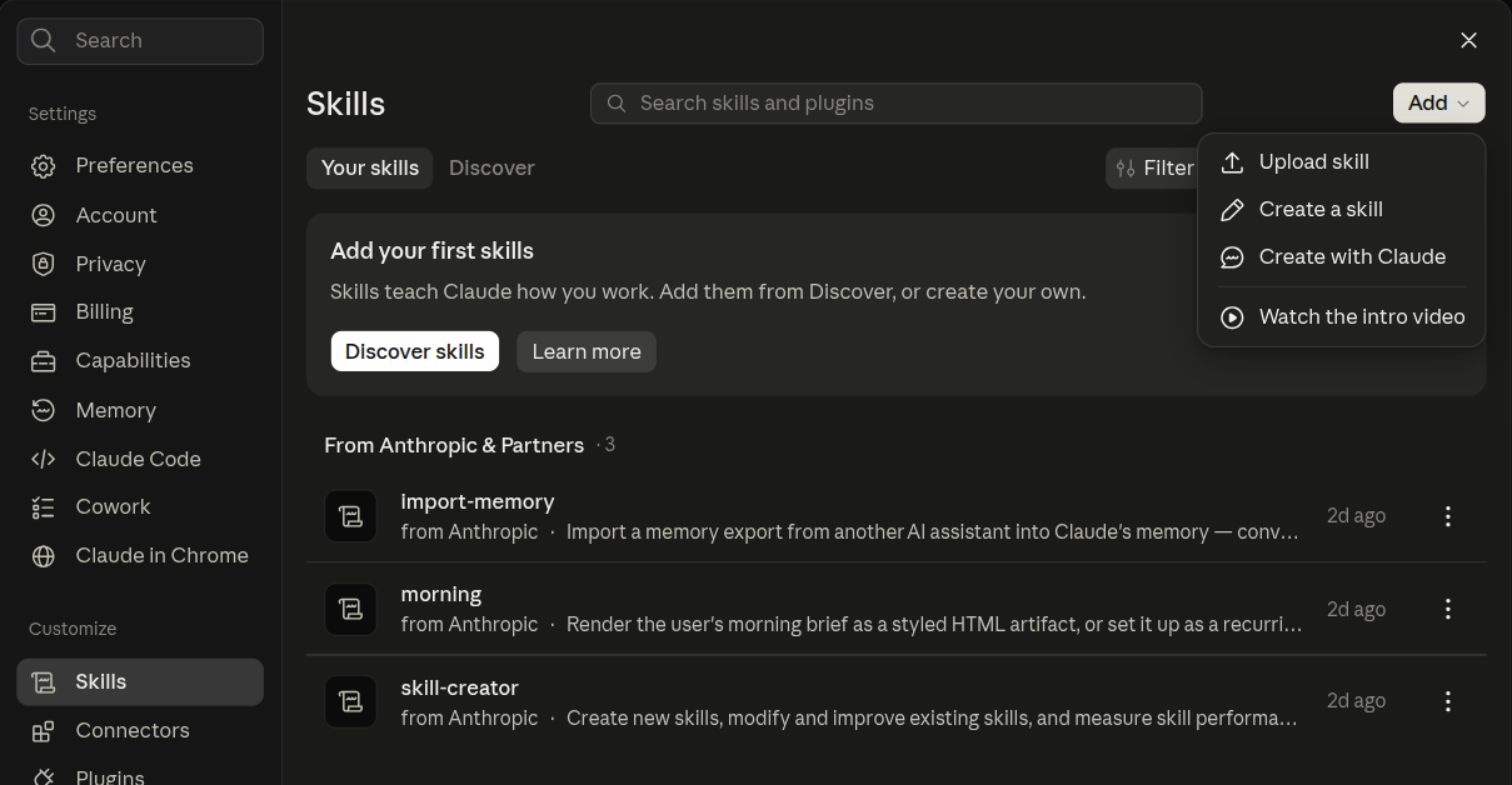
Claude on your computer
Yes
On your computer you add a skill exactly as in Claude.
Cowork uses the same screen, on paid plans. In the app on your computer, open Cowork first, then Customize and Skills.
Claude Code
Yes
A skill is a folder with a SKILL.md file in it. There is no command to add one: you put the folder in the right place.
- In
~/.claude/skills/for all your projects. - In
.claude/skills/inside a project, for that project only.
Or let Claude Code do it: paste the request at the bottom of this page. It first asks whether the skill goes in this folder only or in all your projects.
Type /skills in Claude Code to see whether the skill is listed.
If the extension ships as a plugin, you add it with claude plugin install. That puts it in all your projects; with --scope local it goes in this folder only.
Removing it is deleting the folder again.
ChatGPT
Limited, only if your account can add personal skills
Open the source page from the extension’s page and download the skill you want to use. Check whether the maker supports ChatGPT and which file to upload; a bundle made for another AI does not automatically work in ChatGPT.
If ChatGPT gives you an option to add personal skills, upload the skill there:
- Open Plugins in the left menu and choose Skills at the top.
- Click + and choose Upload from your computer.
- Select the skill file you downloaded from the maker.
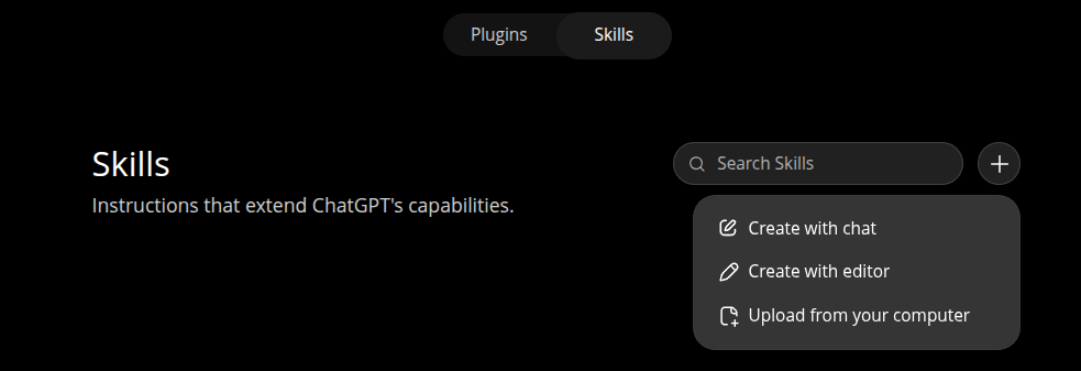
If the option to add skills is missing, availability depends on your plan and workspace. On your computer it also works through the ChatGPT app or Codex.
ChatGPT on your computer
Yes, via Skills in the sidebar
The ChatGPT app on your computer has its own Skills section in the sidebar, and reads skills from the folder ~/.agents/skills/, the same folder as Codex: each skill is a folder of its own with a SKILL.md file in it. OpenAI lists skills for Plus, Pro, Business and Enterprise.
Put the skill’s folder from the source page in that folder and restart the app. A standalone skill like this works in the app on your computer, in the terminal and in the IDE; on the website and your phone, chat and Work only use skills that come inside a plugin.
Rather not move the folder yourself? Paste the request at the bottom of this page into Codex and answer ‘all my projects’: that is the only folder the app reads.
Codex
Yes
A skill is a folder with a SKILL.md file in it. There is no command to add one: you put the folder in the right place.
- In
~/.agents/skills/for all your projects. - In
.agents/skills/inside a project, for that project only.
Or let Codex do it: paste the request at the bottom of this page. It first asks whether the skill goes in this folder only or in all your projects.
Type /skills in Codex to see whether the skill is listed. If it is not there straight away, restart Codex.
Removing it is deleting the folder again.
The request for Claude Code or Codex
Open the source page from the extension’s page, copy the link, paste this request and replace SOURCE_LINK with that link:
Add the skill from SOURCE_LINK following the maker’s instructions. First ask which skill and where: this folder or all my projects. Give me the skill name.Does an extension also list commands, agents or hooks? Check the maker’s instructions for which AI supports the whole bundle and how to add it.